 Nimbo
NimboOn iPhone with Nimbo
How to convert photos to a PDF on iPhone
Short answer
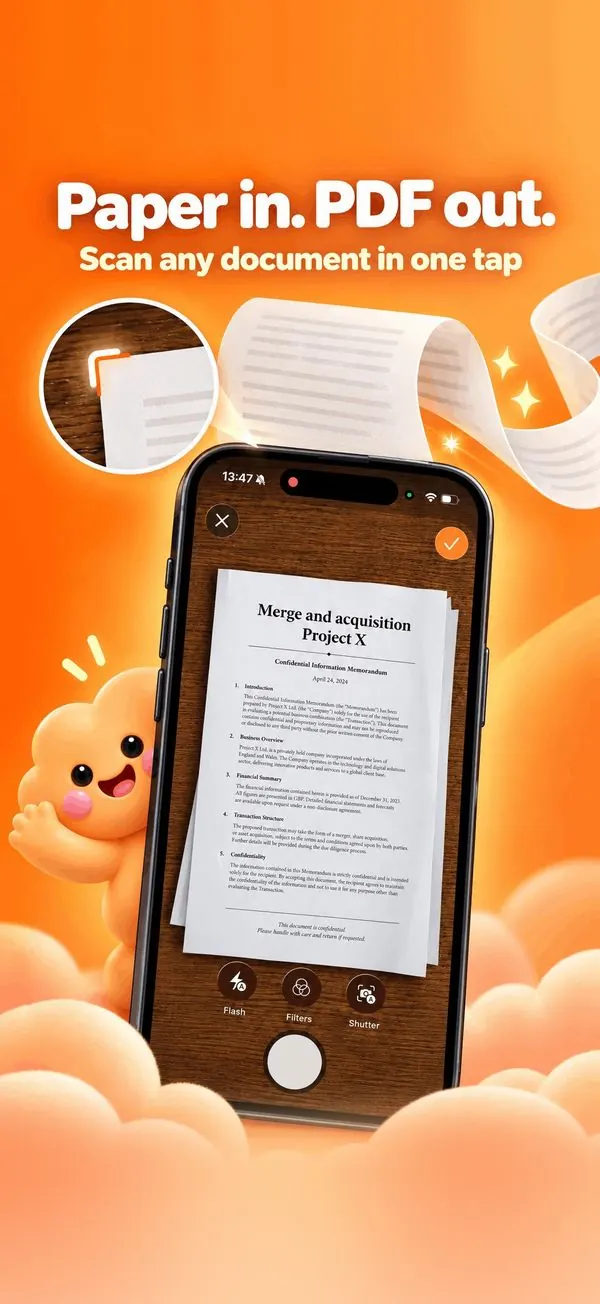
To convert photos to a PDF on iPhone, open Nimbo, tap Photos, select the pictures in the order you want, and tap Create PDF. Each photo becomes a page of one PDF, sized for A4 or Letter, and the conversion happens on your iPhone.
Step by step
- Open Nimbo and tap Photos.
- Select the photos or screenshots, in order.
- Choose the page size if needed.
- Tap Create PDF.
- Share it or find it in your Library.
Why Nimbo
- Free and on-device.
- Many photos into one PDF.
- Real page sizes for printing.
Frequently asked questions
Is there a limit on the number of photos?
You can combine many photos into one document; very large selections take a little longer.
Are my photos uploaded?
No. Photo conversion runs entirely on your iPhone.
Can I reorder pages later?
Yes, with PDF Tools > Organize pages (Nimbo Pro).