 Nimbo
NimboOn iPhone with Nimbo
How to translate a whole PDF on iPhone and keep the layout
Short answer
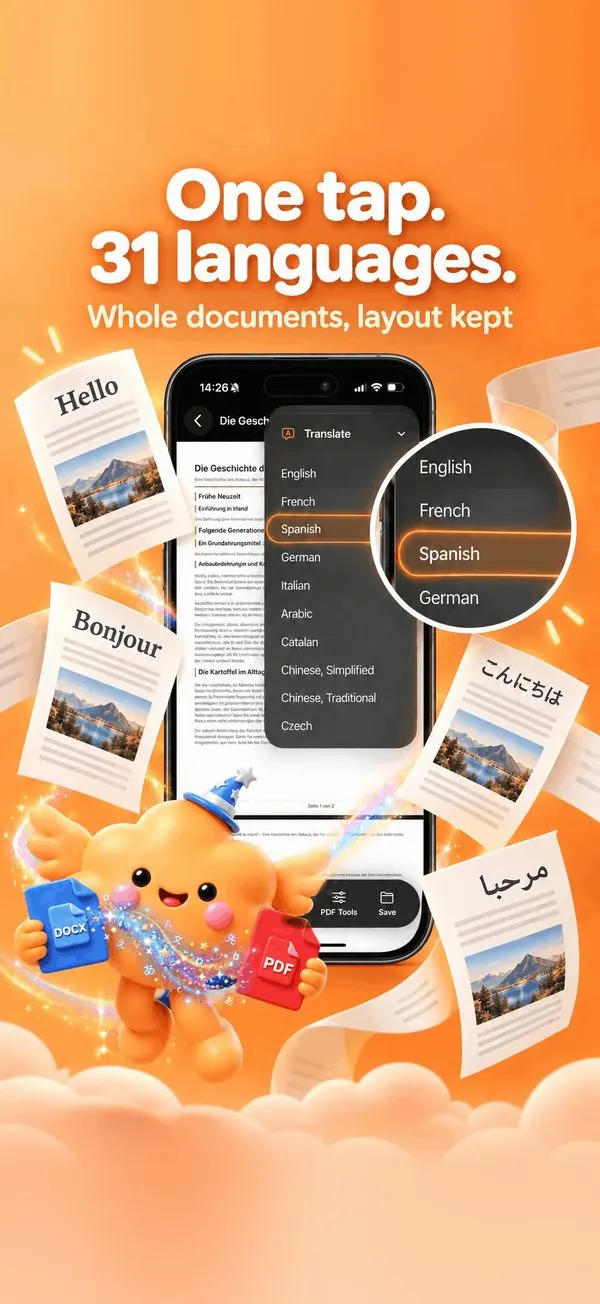
To translate a PDF on iPhone and keep its layout, open it in Nimbo, tap the AI button, then Translate, and pick the language. Nimbo translates the whole document, not a pasted excerpt, and rebuilds it with the same headings, lists and tables, in one of 31 languages.
Step by step
- Open the PDF in Nimbo (or import a Word, PowerPoint or scanned document).
- Tap the AI button, then Translate.
- Choose the language: 31 are available.
- Wait a few seconds while the whole document is translated.
- Review the result, then Save PDF or Share.
Why Nimbo
- The whole document, not a copy-paste of a paragraph.
- Structure kept: headings, lists, tables and figures.
- Works on scanned pages: the text is read first.
Frequently asked questions
Which languages are supported?
31 languages, including English, French, Spanish, German, Italian, Portuguese, Japanese, Korean, Chinese and Arabic.
Is my document stored after translation?
Nothing is sent without your permission. Requests are not stored and generated documents are deleted from the server within 24 hours.
Can I translate a scanned letter?
Yes. Scan it with Nimbo, then translate it: the text of the scan is recognized first.