 Nimbo
NimboOn iPhone with Nimbo
How to save a webpage as a PDF on iPhone (clean, without ads)
Short answer
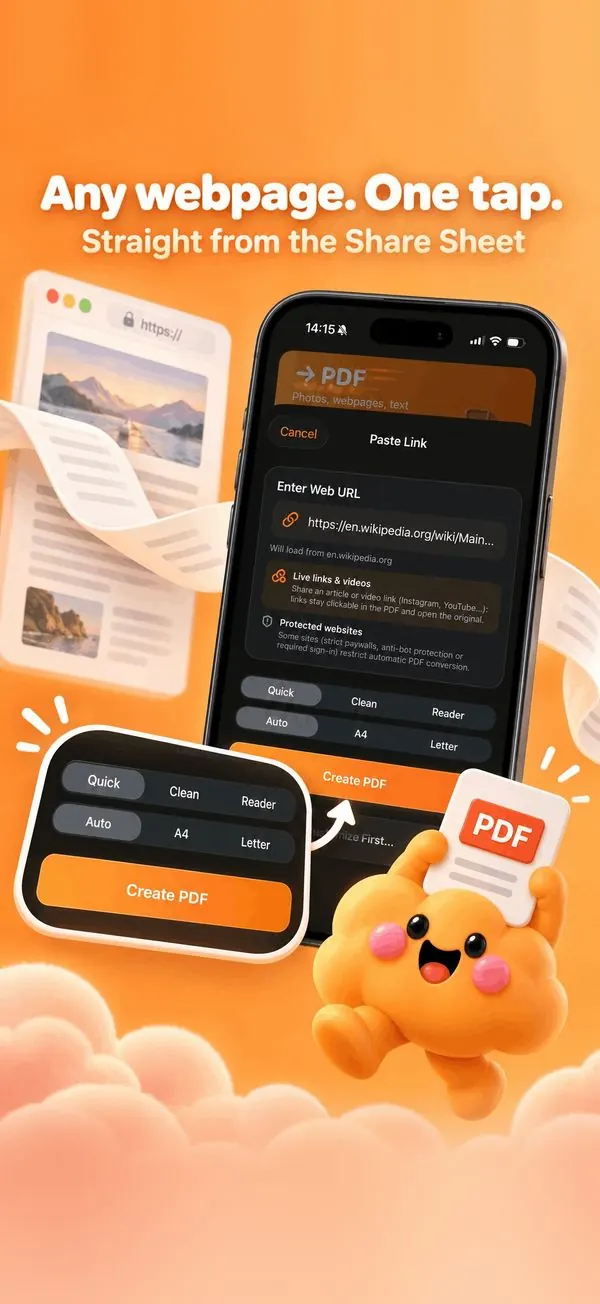
To save a webpage as a PDF on iPhone, open it in Safari, tap Share, then choose Nimbo. Pick Quick, Clean or Reader, tap Create PDF, and the page is saved as a PDF with its links still clickable, without ads or cookie banners in Reader mode.
Step by step
- Open the page in Safari (or any app that shares links).
- Tap Share, then Nimbo (add it from More the first time).
- Choose Quick, Clean or Reader, and the paper size.
- Tap Create PDF.
- Tap View in Nimbo to open it in your Library, or Share it right away.
Why Nimbo
- Reader mode removes ads, menus and banners.
- Links stay clickable in the PDF.
- Also works from Photos, Notes and Files.
Frequently asked questions
Why use Nimbo instead of Safari's Print to PDF?
Nimbo gives a clean Reader layout, real A4 or Letter pages and keeps links clickable, then files the PDF in your Library.
Does it work with paywalled pages?
Some sites block automated conversion; Nimbo tells you when a page cannot be captured.
Is the Share extension free?
The Share extension is part of Nimbo Pro.