 Nimbo
NimboOn iPhone with Nimbo
How to sign a PDF on iPhone (in seconds)
Short answer
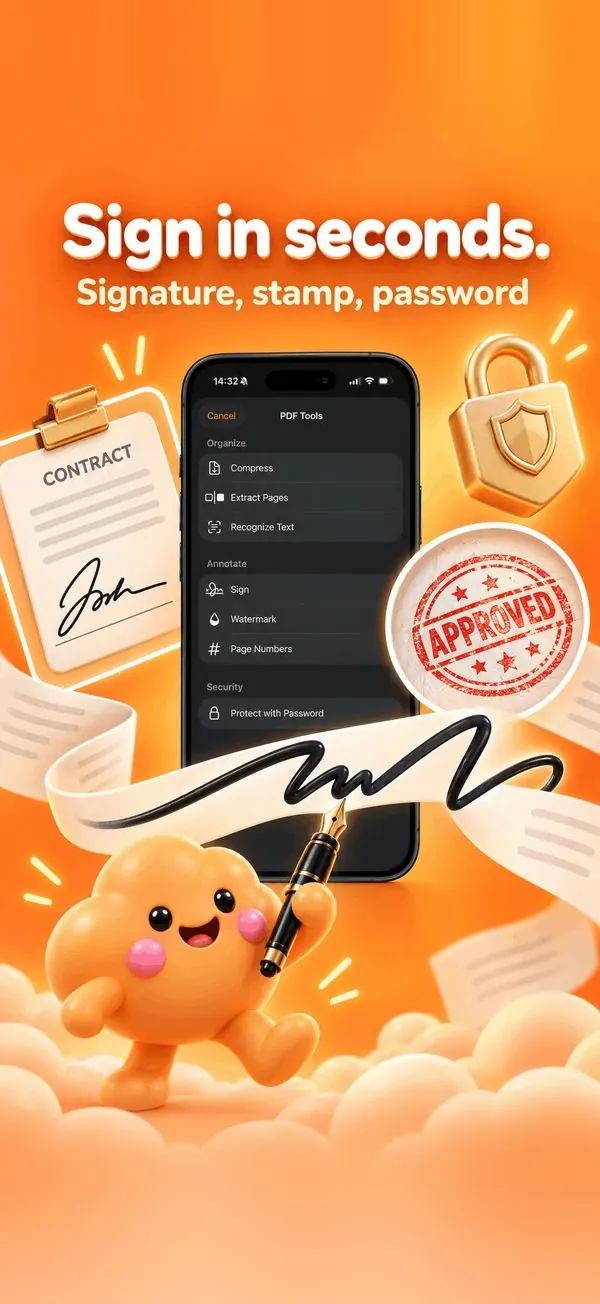
To sign a PDF on iPhone, open it in Nimbo, tap PDF Tools, then Sign. Draw your signature once with your finger, place it on the page, and save. Nimbo keeps your signature for next time and can add a company stamp or a password before you send the file.
Step by step
- Open the PDF in Nimbo (from Files, Mail, or the Library).
- Tap PDF Tools, then Sign.
- Draw your signature with your finger, or pick a saved one.
- Drag it where it belongs and resize it with a pinch.
- Optional: add a stamp such as APPROVED, or protect the PDF with a password.
- Tap Done, then Share to send the signed PDF.
Why Nimbo
- Saved signatures: sign the next contract in one tap.
- Stamps and password protection in the same place.
- No account: your signature never leaves your iPhone.
Frequently asked questions
Is a signature drawn on iPhone legally valid?
A simple electronic signature may be enough for many everyday documents, such as quotes, leases or school forms, but legal requirements vary by country and document type. Some documents require a specific or qualified signature: check with the other party if you're unsure.
Can I sign a PDF someone emailed me?
Yes. In Mail, tap the attachment, then Share, and choose Nimbo. The PDF opens ready to sign.
Is my signature uploaded anywhere?
No. Signatures are stored on your device only. Nimbo has no account and no tracking.