 Nimbo
NimboOn iPhone with Nimbo
How to scan a document to PDF on iPhone
Short answer
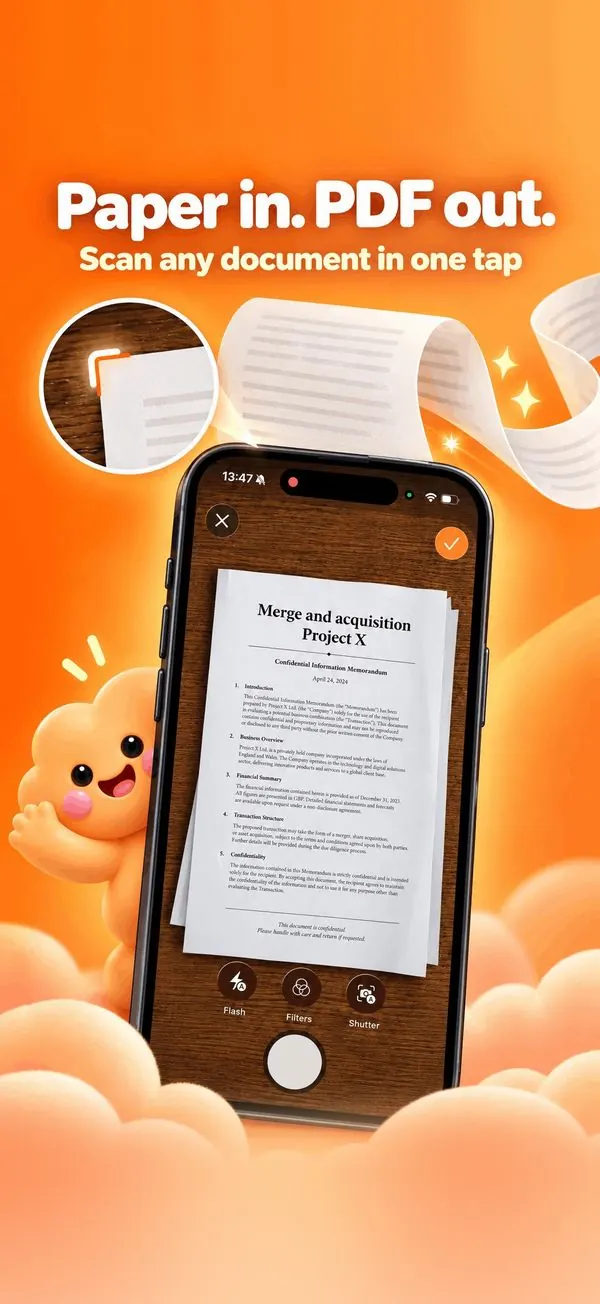
To scan a document to PDF on iPhone, open Nimbo and tap Scan. Hold the page in view: the edges are found automatically and the shot is taken. Add more pages if you need, tap Save, and you get one cropped, flattened PDF in your Library.
Step by step
- Open Nimbo and tap Scan on the Home screen.
- Point the camera at the page; Nimbo detects the edges and captures it.
- Keep going for more pages: they all go into the same PDF.
- Adjust the corners or the filter if needed.
- Tap Save: the PDF lands in your Library, ready to share.
Why Nimbo
- Scanning is free and runs entirely on your iPhone.
- Multi-page scans in a single PDF.
- Make the text searchable with on-device OCR (Nimbo Pro).
Frequently asked questions
Is scanning free?
Yes. Scanning to PDF is part of the free features, with no watermark and no account.
Can I scan receipts and ID documents?
Yes. Everything is processed on your device and stays in your Library.
Can I search the text of a scan?
With Nimbo Pro, Recognize Text (OCR) makes the words of a scanned PDF searchable and selectable.