 Nimbo
NimboOn iPhone with Nimbo
How to make a scanned PDF searchable on iPhone (OCR)
Short answer
To make a scanned PDF searchable on iPhone, open it in Nimbo, tap PDF Tools, then Recognize Text. Nimbo reads every page on your device and adds an invisible text layer, so you can search for words, select them and copy them, while the page looks exactly the same.
Step by step
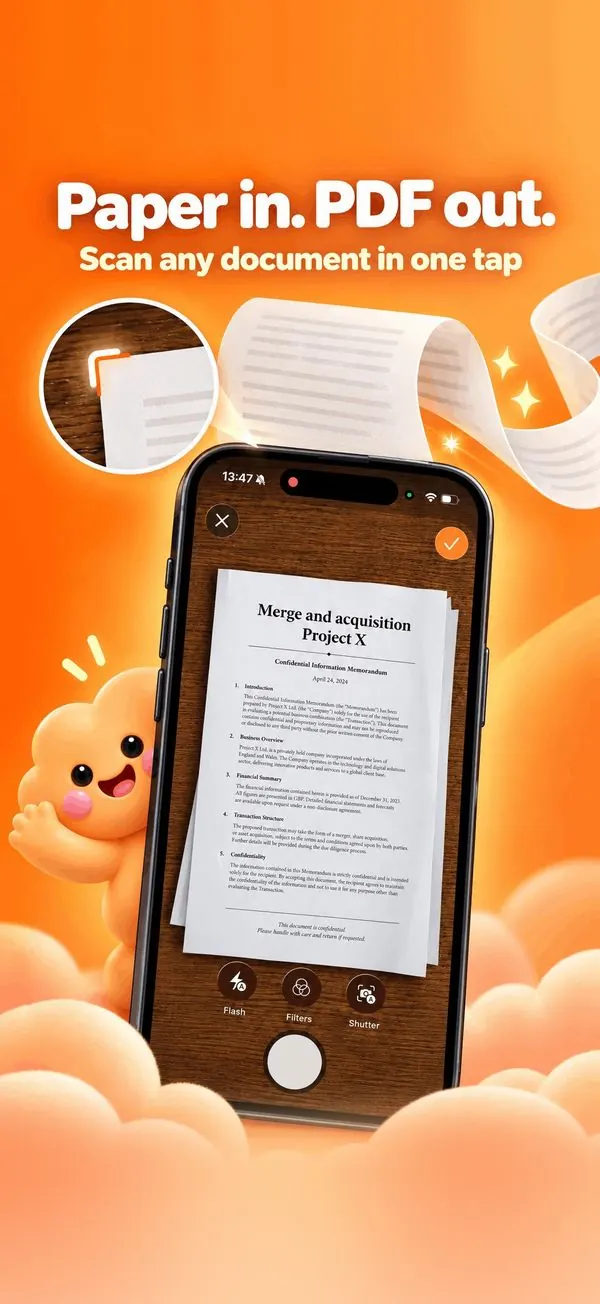
- Open the scanned PDF in Nimbo.
- Tap PDF Tools, then Recognize Text.
- Wait while each page is read on your iPhone.
- Search with the magnifier, or select and copy text.
Why Nimbo
- On-device OCR: private by design.
- The page looks unchanged.
- Makes scans ready for Ask and Translate.
Frequently asked questions
Which languages does OCR read?
Latin-script languages and many others supported by iOS text recognition.
Does it work on handwriting?
Clear handwriting is often recognized; printed text gives the best results.
Is it part of Pro?
Recognize Text is part of the PDF Tools in Nimbo Pro.