 Nimbo

Short answer
On iPhone Duo, Nimbo follows the screen: folded, it is the one-column iPhone app; unfolded, the inner screen shows two panes, the Library beside the document, the page thumbnails beside the PDF, the Ask conversation or the translation beside the original. Fold or unfold at any moment and you stay on the same page, at the same zoom, in the same conversation. The layouts are in Nimbo 1.0, for every user, and they serve iPad and Split View the same way.
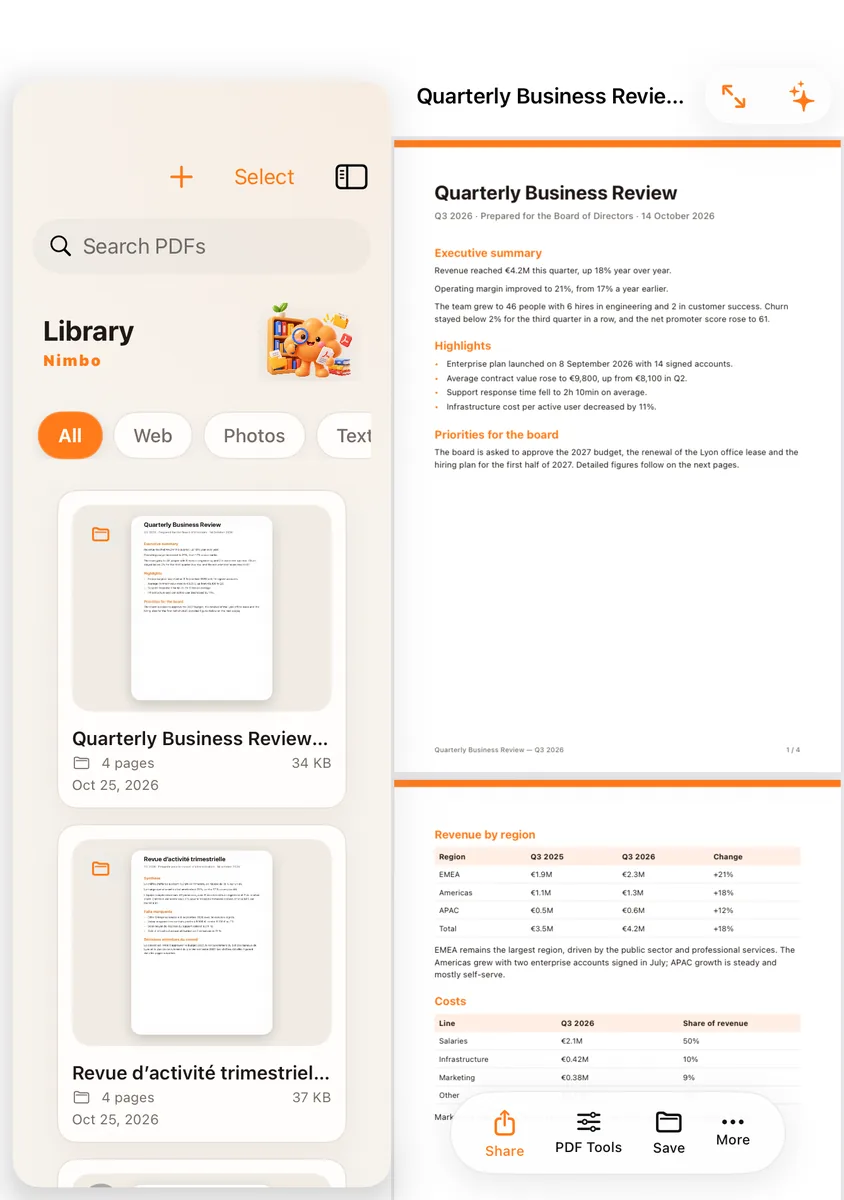
One app, two widths
Nimbo is not two apps bolted together. Every screen is laid out for the width it gets: on the outer screen and on any iPhone, one column; on the inner screen of iPhone Duo, and on iPad, two panes in the system split view. Opening, folding and rotating do not restart anything, they only change how much is shown at once.
Step by step
- Unfold the phone and open Nimbo: the Library takes one side, the inner screen's split view the other.
- Tap a PDF. It opens on the right, while the list stays on the left; tap another file and it takes its place.
- In the Reader, the page thumbnails sit next to the document: tap one to jump. Turn the phone and two pages show side by side.
- Tap the AI button, then Ask: the conversation opens beside the PDF. Tap a citation and the page scrolls into view.
- Use the full screen button to give the whole inner screen to the PDF, and again to bring the pane back.
- Fold the phone: the outer screen shows where you were, one column, same page.
The Reader, unfolded
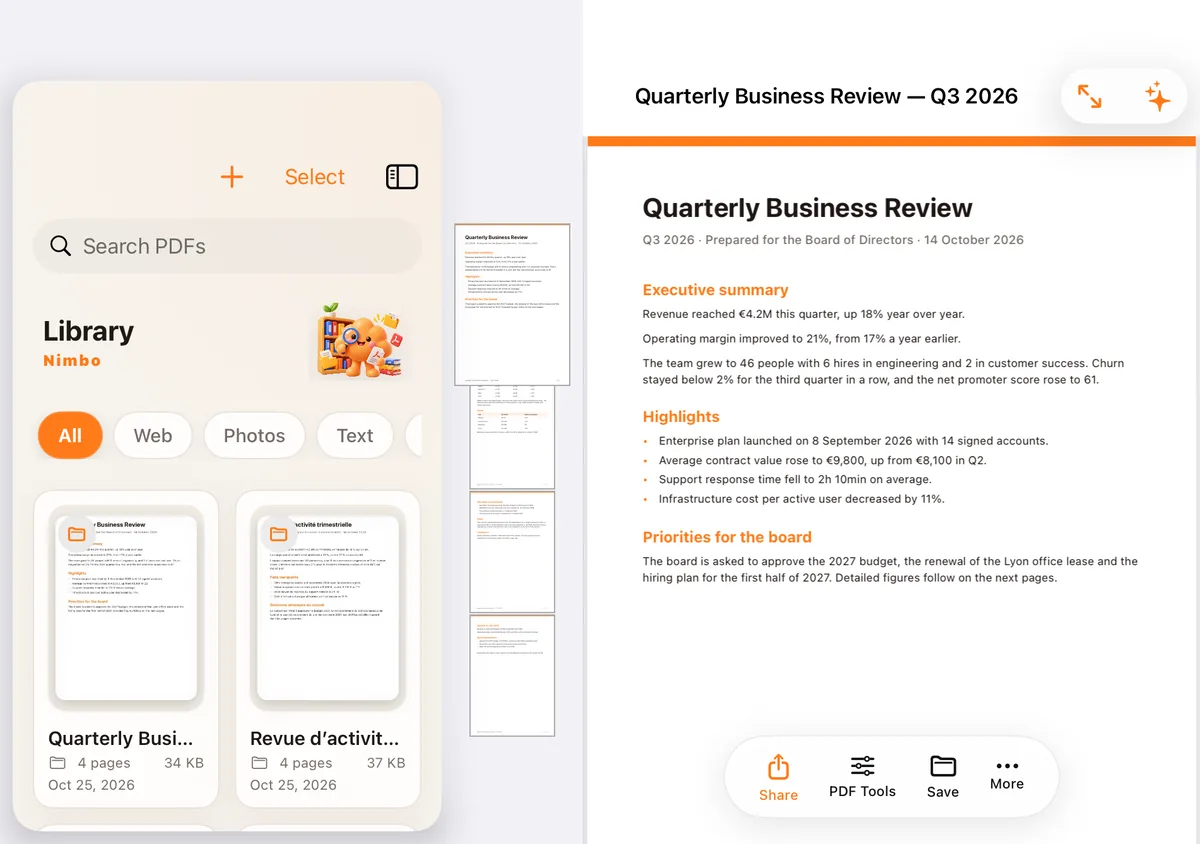
The Reader is where the inner screen pays off. Page thumbnails sit beside the document, so moving around a 40-page report is one tap, and the search results are marked on them. In landscape, two pages show side by side, like an open book; a contract and its annex read the way they were printed. The full screen button hands the whole inner screen to the page, and brings the thumbnails back.
Ask and Translate, side by side
The two AI features that most need two panes get them. In Ask, the conversation sits next to the PDF and a tap on a cited passage scrolls the page into view, without closing the chat. In Translate, the original is on one side and the translation on the other, with synchronized paging: turn a page and both move together, so a translated clause can be checked against its source at a glance. The chat with a PDF and translate articles cover the features themselves.
Files and Photos, beside Nimbo
With Files or Photos open next to Nimbo, a PDF or a picture dragged into the Library is imported right there, on the device, as it would be with the Share extension. Merging a few PDFs received by email becomes a drag and a tap; on a computer, the free Merge PDF tool on this site does the same in the browser.
Fold. Unfold. Nothing is lost.
The page you are on, the zoom, the Ask conversation, a document being created and a scan in progress all carry over when you fold or unfold. Closed, you see the last screen; open, the last two. The iPhone Duo page walks through every layout, and the app page shows the app screen by screen.
Frequently asked questions
Do I need a special version of Nimbo for iPhone Duo?
No. The two-pane layouts are part of Nimbo 1.0 on the App Store. The app reads the width available and switches between one and two panes; the same build serves every iPhone and iPad.
What happens when I fold the phone during a scan?
The scan continues on the outer screen, with the pages already captured. The same applies to a conversation in Ask, a page in the Reader and a document being created: the state is kept across the fold.
Can I drag a file into Nimbo on the inner screen?
Yes. Open Files or Photos beside Nimbo and drag PDFs or images into the Library. They are imported on the device, exactly like with the Share extension.
Does any of this change what is uploaded?
No. The layouts are presentation only. Scans, conversions, signatures and compression run on the device and send nothing; the AI features send the text they need only when you use them, after asking you once.