 Nimbo

Short answer
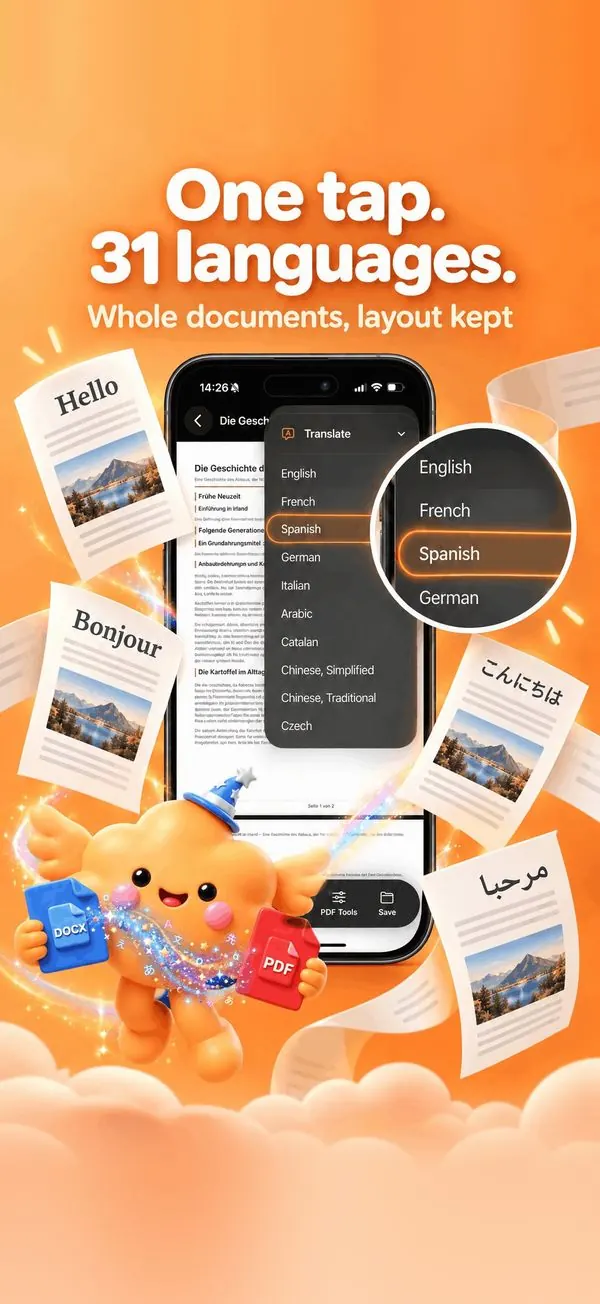
To translate a PDF on iPhone Duo, unfold the phone, open the document in Nimbo, tap the AI button, then Translate, and pick one of 31 languages. Unfolded, the original sits on one side and the translation on the other, with synchronized paging: turn a page and both move together. Translate is part of Nimbo Pro.
Why iPhone Duo changes PDF translation
On a regular iPhone, checking a translation means switching from one document to the other. On the inner screen of iPhone Duo, Nimbo puts the original and its translation side by side. Page 3 of one faces page 3 of the other, and they move together.
For a lease, an official letter received abroad or insurance terms, it is the most direct way to check a translated clause against its source. Folded, Nimbo works like on any iPhone, in one column.
Step by step
- Unfold the phone and open the PDF in Nimbo. A Word file? Turn it into a PDF first.
- Tap the AI button, then Translate.
- Pick the target language among the 31 available.
- Wait a few seconds: the whole document is translated, not an excerpt.
- Compare: the original on one side, the translation on the other, page for page.
- Save the PDF or share it. The original stays untouched in the Library.
A translated document, not a paragraph
Copying a PDF into a translation app keeps only the words. Nimbo translates the whole file and lays it out again: headings, lists and tables stay in place. A two-page letter is still a two-page letter, and a price table is still a table. The translation is a new PDF, filed beside the original. The translate a PDF on iPhone article covers the feature itself, on any iPhone.
Word files, scans and photos
Translate works on PDFs that contain text. A Word file is turned into a PDF first, as the Word to PDF guide shows; then open that PDF and tap Translate. Scans, photos and saved web pages are kept as they look, as pictures of the page, so Translate is not offered for them. Unfolded, open Files beside Nimbo and drag a PDF into the Library: it is imported on the device.
Folding while you read
Reading the translation on the train with the phone folded, then unfolding to check a passage? Nimbo keeps the page you are on and the zoom when you fold or unfold. The iPhone Duo page and the reading PDFs on iPhone Duo article describe every layout.
What is sent, and when
Translate is one of Nimbo's four AI features, the only ones that use a server. The app asks for your permission once, before the first request. After that, tapping Translate sends the text of the document, and nothing else from your phone, to Nimbo's server in the European Union. Requests are not stored and the generated document is deleted within 24 hours. The translate guide and the how it works page have the details.
Frequently asked questions
Is translation free on iPhone Duo?
No. Translate is part of Nimbo Pro, on iPhone Duo as on any iPhone. The monthly plan starts with a 3-day free trial for new subscribers. Scanning, importing and the Library stay free.
Does the side-by-side view work on iPad too?
Yes. The layouts follow the width available: the original and the translation side by side also serve iPad and Split View.
Do I need a special version of Nimbo for iPhone Duo?
No. The two-pane layouts are part of Nimbo 1.0 on the App Store. The same build serves every iPhone and iPad.